
How to turn off autorenewal for Playlisting?
How to turn off autorenewal for Playlisting?
You can now manage the auto-renewal settings for all of your campaigns from one place using the Autorenewals tab in your Songtools dashboard.
- Log in to your Songtools account.
For the best experience, we recommend managing your renewal settings from a desktop computer rather than a mobile device. - Open the “Autorenewals” tab.
This page gives you an overview of the renewal status for all of your tracks and campaigns in one place. - Find the track and campaign you want to manage.
Locate the track, then choose the campaign type you want to update, such as Playlisting or one of your Digital Ad campaigns. - To keep auto-renew ON:
Leave the toggle switched to the right. This means the campaign will automatically renew for another promotion cycle once the current cycle ends. - To turn auto-renew OFF:
Switch the toggle to the left. Your campaign will continue running through its current promotion cycle, but it will expire at the end of that cycle and will not renew again.
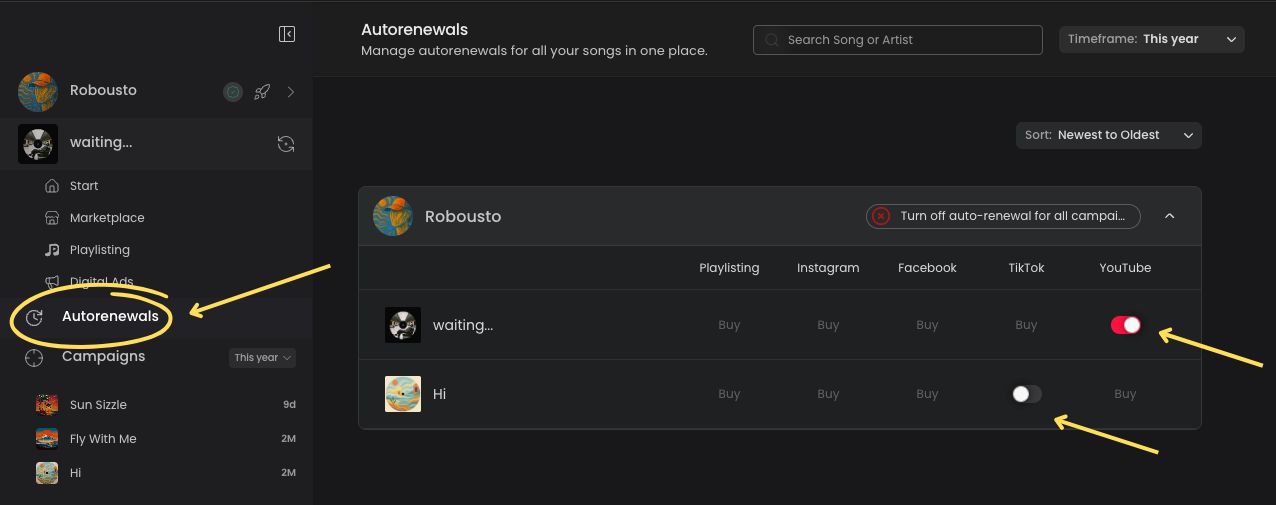
Please note: Auto-renewal settings are managed at the individual campaign level. If you have multiple active campaigns, you will need to turn auto-renew off separately for each campaign you do not want to renew.
You can also use the Autorenewals page to see which campaigns are not currently active. If you would like to start a new campaign for a track, simply click “Buy” under the campaign type you want to launch.
